> ## Documentation Index
> Fetch the complete documentation index at: https://data-foundation.rockerbox.com/llms.txt
> Use this file to discover all available pages before exploring further.
# Rakuten
> Learn how to set up Rakuten Advertising affiliate integration with Rockerbox
## Setup Process
1. Enable the Rakuten integration on the [Advertising Platforms](https://app.rockerbox.com/v3/data/marketing/advertising_platforms/connect) page by clicking **Connect New Account**
2. Apply UTM tracking parameters to all landing pages (see Click Tracking below)
3. Set up automated daily spend reporting from Rakuten to Rockerbox (see Batch Spend below)
4. Contact [support@rockerbox.com](mailto:support@rockerbox.com) with the launch date and the [tier structure](https://help.rockerbox.com/article/obce43haen-1-hierarchy-mappings) you'd like applied
5. The day after launch, confirm tracking is applied on the [Advertising Platforms](https://app.rockerbox.com/v3/data/marketing/advertising_platforms/main) page
## Click Tracking
Apply the following UTM parameters to all landing pages. Include Rakuten's `ranEAID` parameter, which enables publisher-level reporting.
### Example Parameter String
```text wrap theme={null}
utm_source=rakuten&utm_medium=affiliate&utm_campaign=CAMPAIGN_NAME&utm_term=TERM&ranEAID={raneaid}
```
| Parameter | Value | Description |
| ---------------------------- | ----------------------- | ----------------------------------------------------- |
| `utm_source` or `utm_medium` | `rakuten` | Identifies Rakuten as the traffic source (required) |
| `utm_campaign` | Campaign-specific value | Campaign identifier |
| `utm_term` | Term-specific value | Ad term or keyword |
| `ranEAID` | `{raneaid}` | Publisher ID (required for publisher-level reporting) |
## Batch Spend
In Rakuten, navigate to **Reports > Reporting** and build a new report with the following fields:
**Required Columns** (must match exactly, including capitalization and spacing):
```
Transaction Date
Publisher ID
Publisher Name
Total Commission
Publisher Encrypted ID
```
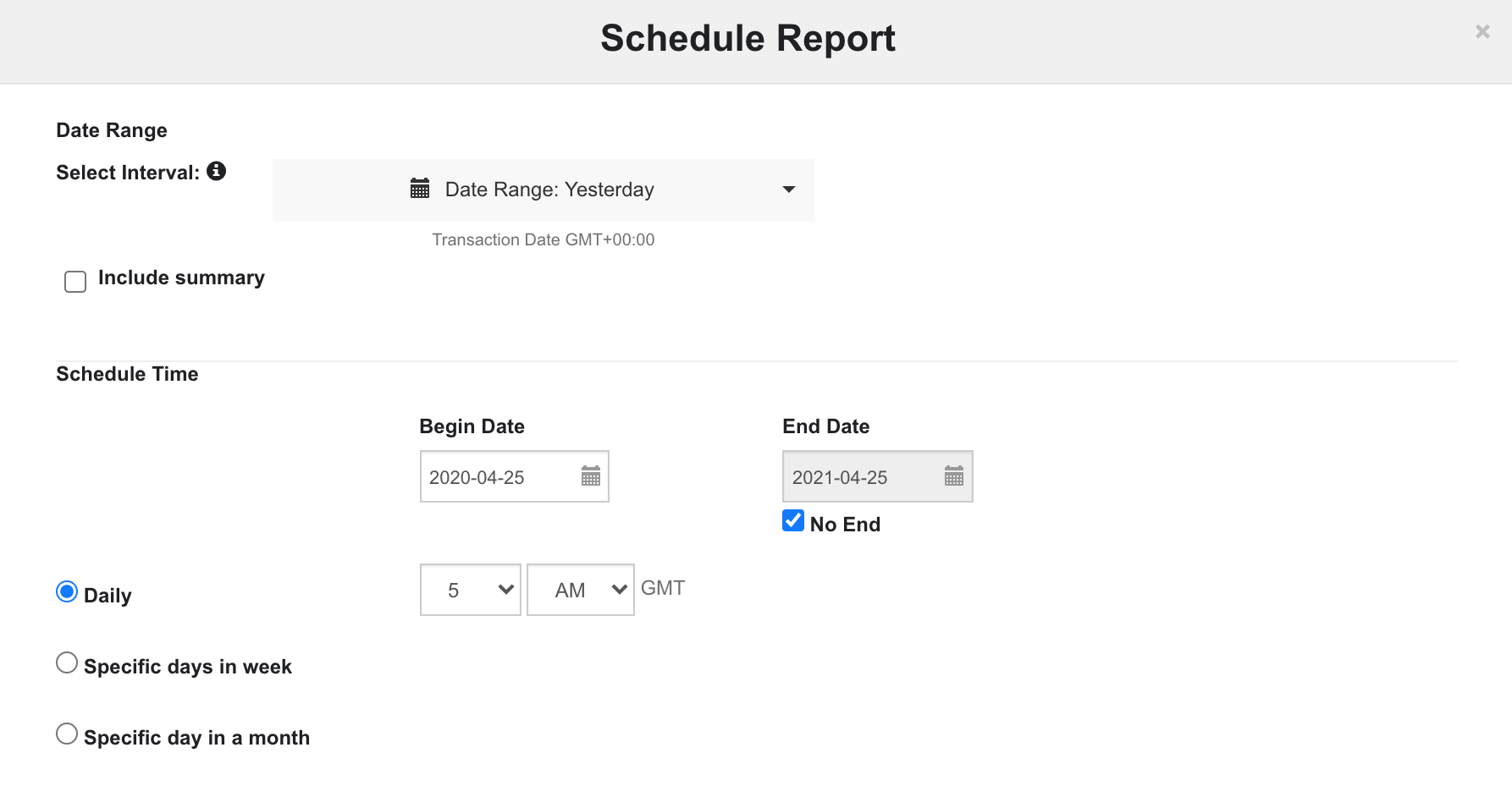
Schedule a **daily** report to deliver the previous 1 day of data to the Rockerbox SFTP endpoint. Contact [support@rockerbox.com](mailto:support@rockerbox.com) for SFTP endpoint details.
 **Note:** Spend does not include percentage-based sales, only commission amounts.
## Verification
After setup:
1. Confirm tracking is applied on the [Advertising Platforms](https://app.rockerbox.com/v3/data/marketing/advertising_platforms/main) page
2. Verify spend data appears in Rockerbox dashboard
3. Contact [support@rockerbox.com](mailto:support@rockerbox.com) for QA assistance
**Note:** Spend does not include percentage-based sales, only commission amounts.
## Verification
After setup:
1. Confirm tracking is applied on the [Advertising Platforms](https://app.rockerbox.com/v3/data/marketing/advertising_platforms/main) page
2. Verify spend data appears in Rockerbox dashboard
3. Contact [support@rockerbox.com](mailto:support@rockerbox.com) for QA assistance