> ## Documentation Index
> Fetch the complete documentation index at: https://data-foundation.rockerbox.com/llms.txt
> Use this file to discover all available pages before exploring further.
# CallRail
> Learn how to set up CallRail call tracking integration with Rockerbox
## Overview
Rockerbox integrates with CallRail to import phone calls as a conversion event. CallRail data additionally helps supplement your customer identity graph, tying callers and phone numbers to browser sessions tracked by Rockerbox.
The [CallRail JavaScript snippet](https://support.callrail.com/hc/en-us/articles/201051406) must be installed on all applicable pages with Dynamic Number Insertion (DNI) enabled. This allows CallRail, and Rockerbox, to uniquely track each caller originating from your website.
## Setup Process
### 1. Enable Custom Cookie Capture
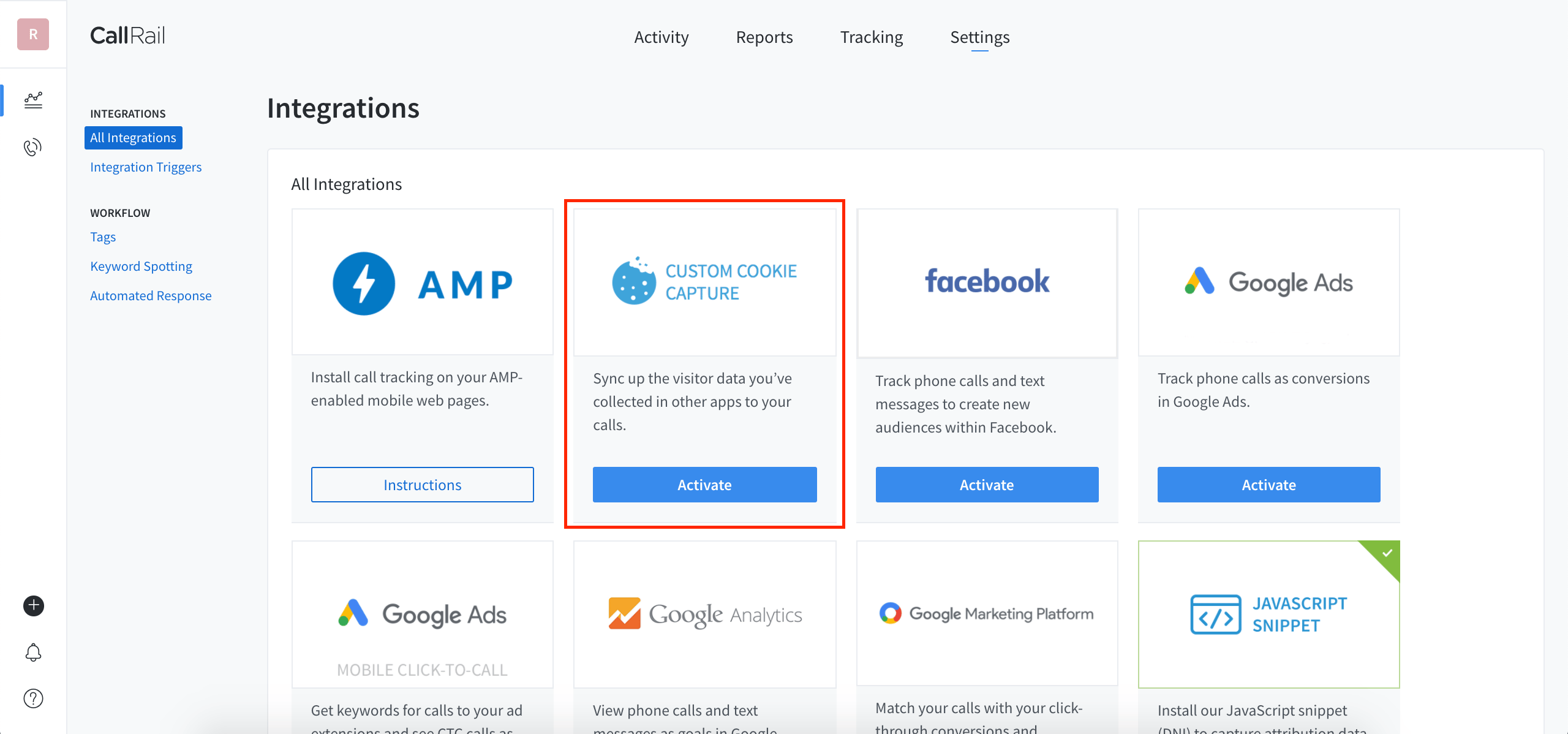
In your CallRail dashboard, go to **Settings > Integrations** and click into **Custom Cookie Capture**.
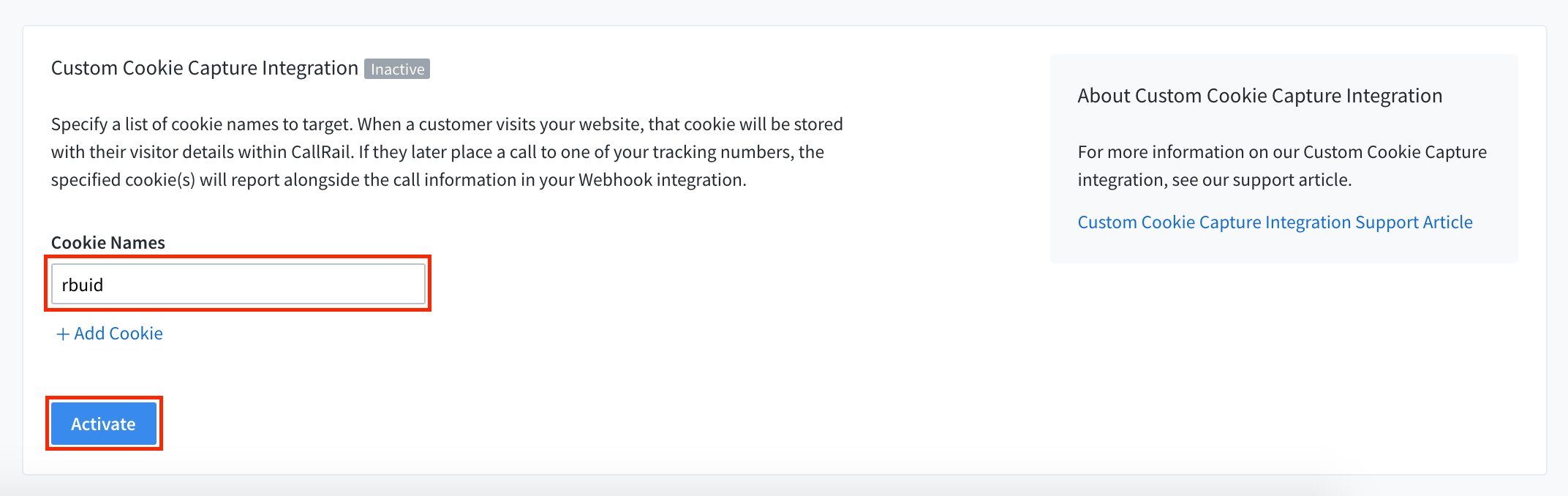
 Under **Cookie Names**, enter `rbuid` and click **Activate**. If you already have a value entered, use the **Add Cookie** option to add `rbuid` in a separate box.
 ### 2. Configure Webhooks
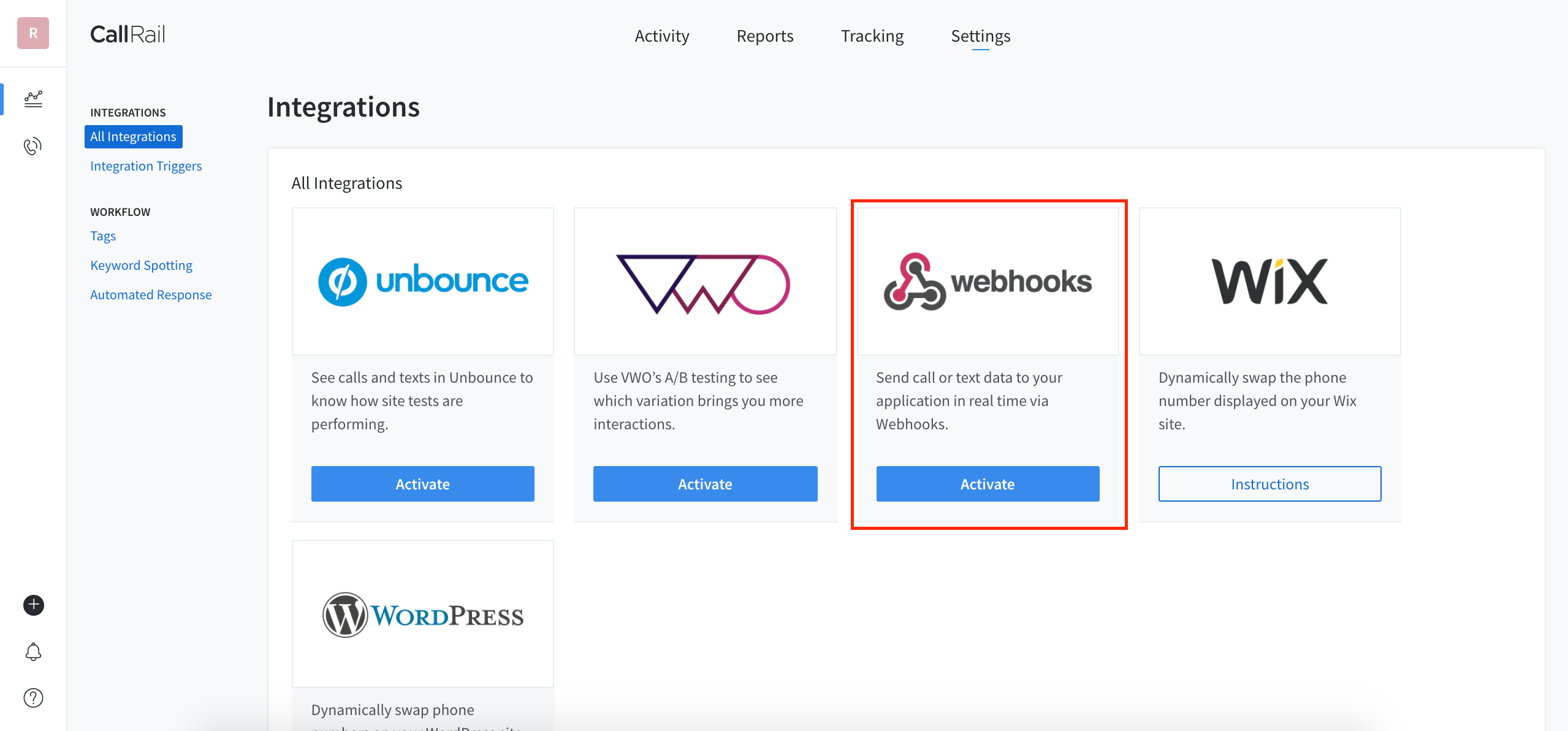
Go back to **Settings > Integrations** and click into **Webhooks**.
### 2. Configure Webhooks
Go back to **Settings > Integrations** and click into **Webhooks**.
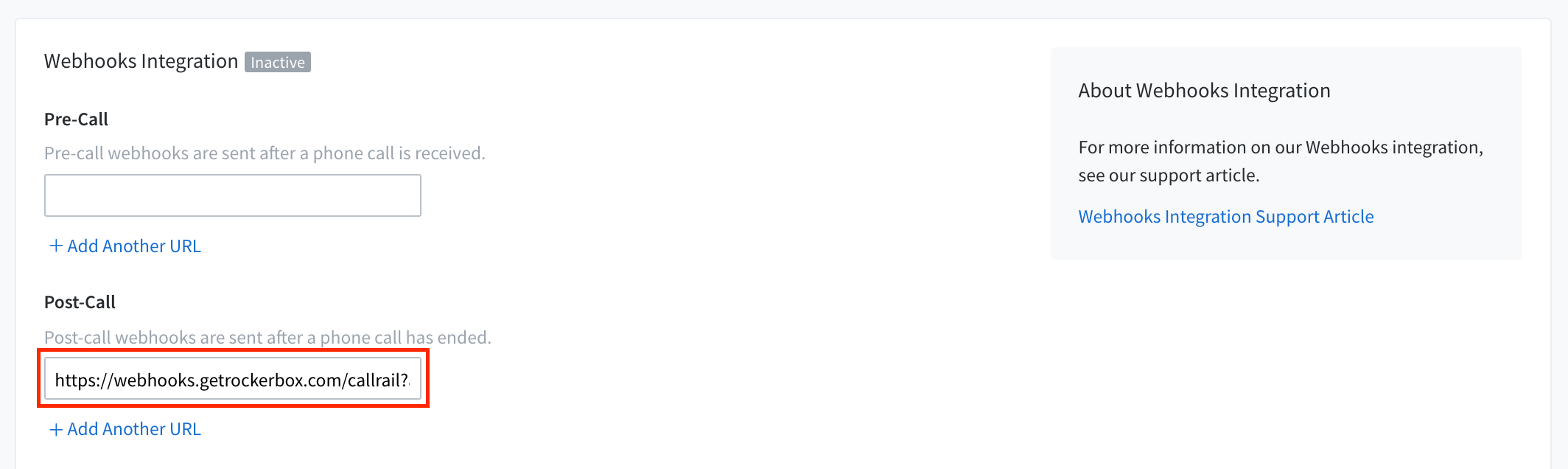
 Under the **Post-Call** section, paste in the webhook URL provided by your Rockerbox account manager. The URL follows the format:
```text wrap theme={null}
https://webhooks.getrockerbox.com/callrail?advertiser=YOUR_ACCOUNT_NAME
```
If you already have a value entered, use the **Add Another URL** option to add the Rockerbox webhook in a separate box.
Under the **Post-Call** section, paste in the webhook URL provided by your Rockerbox account manager. The URL follows the format:
```text wrap theme={null}
https://webhooks.getrockerbox.com/callrail?advertiser=YOUR_ACCOUNT_NAME
```
If you already have a value entered, use the **Add Another URL** option to add the Rockerbox webhook in a separate box.
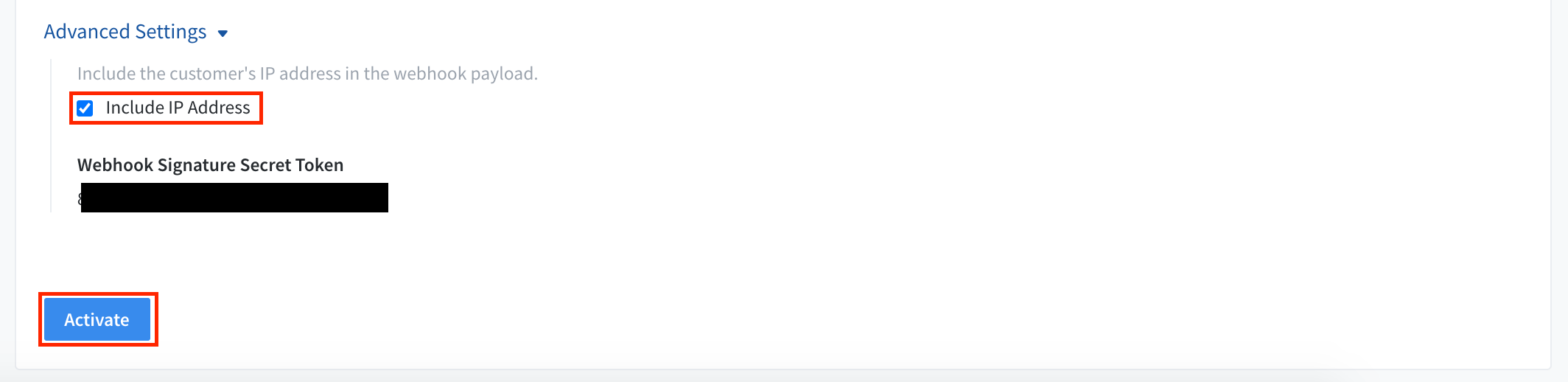
 Under **Advanced Settings**, check the box to **Include IP Address** and click **Activate**.
 ### 3. Confirm and Launch
1. Go back to **Settings > Integrations** and confirm that both **Custom Cookie Capture** and **Webhooks** are enabled
2. Contact your Rockerbox account manager to proceed with setting up the integration on the Rockerbox side
## Verification
After setup:
1. Confirm call data is flowing into Rockerbox
2. Verify phone call conversions appear in your reporting
3. Contact [support@rockerbox.com](mailto:support@rockerbox.com) for QA assistance
### 3. Confirm and Launch
1. Go back to **Settings > Integrations** and confirm that both **Custom Cookie Capture** and **Webhooks** are enabled
2. Contact your Rockerbox account manager to proceed with setting up the integration on the Rockerbox side
## Verification
After setup:
1. Confirm call data is flowing into Rockerbox
2. Verify phone call conversions appear in your reporting
3. Contact [support@rockerbox.com](mailto:support@rockerbox.com) for QA assistance