> ## Documentation Index
> Fetch the complete documentation index at: https://data-foundation.rockerbox.com/llms.txt
> Use this file to discover all available pages before exploring further.
# Invoca
> Learn how to set up Invoca call tracking integration with Rockerbox
## Overview
Rockerbox integrates with Invoca to import phone calls as a conversion event and treat phone calls as a marketing touchpoint on the path to conversion. Invoca data additionally helps supplement your customer identity graph, tying callers and phone numbers to browser sessions tracked by Rockerbox.
## Setup Process
### 1. Enable the Invoca Integration in Rockerbox
1. In your Rockerbox dashboard, go to **Settings > Data Sources**
2. Under the **Integrations** section, click the switch next to **Invoca**
3. Enter your Invoca **Network ID** and **API Token** (see below for how to find these)
4. Submit the form. Once you see your Invoca account name appear, the integration is set up
### 2. Find Your Invoca Network ID
Your Network ID is visible after `/networks/` in the URL on the Invoca Network Home Page.
```text wrap theme={null}
https://yourplatformname.invoca.net/networks/99/dashboards/ui
```
In this example, the Network ID is `99`.
### 3. Generate an Invoca API Token
1. In the Invoca navigation bar, hover on **Integrations** and select **Invoca APIs**
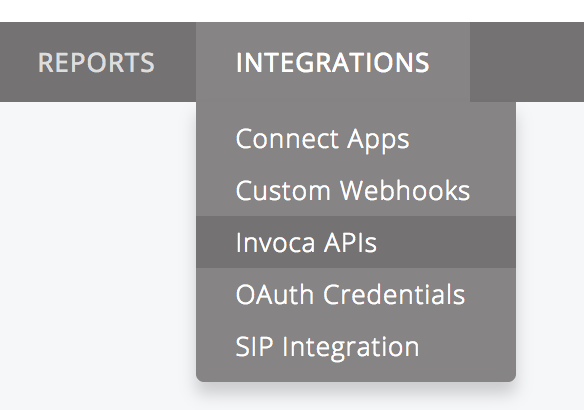 2. On the **Invoca API Credentials** page, click **New API Credential**
3. Enter `Rockerbox` as the description and click **Save**
4. Copy the generated API token and use it in the Rockerbox integration setup above
For more detailed instructions, refer to [Invoca's API documentation](https://docs.invoca.net/en/latest/api_documentation/manage_api_credentials.html).
## Verification
After setup:
1. Confirm call data is flowing into Rockerbox
2. Verify phone call conversions appear in your reporting
3. Contact [support@rockerbox.com](mailto:support@rockerbox.com) for QA assistance
2. On the **Invoca API Credentials** page, click **New API Credential**
3. Enter `Rockerbox` as the description and click **Save**
4. Copy the generated API token and use it in the Rockerbox integration setup above
For more detailed instructions, refer to [Invoca's API documentation](https://docs.invoca.net/en/latest/api_documentation/manage_api_credentials.html).
## Verification
After setup:
1. Confirm call data is flowing into Rockerbox
2. Verify phone call conversions appear in your reporting
3. Contact [support@rockerbox.com](mailto:support@rockerbox.com) for QA assistance