> ## Documentation Index
> Fetch the complete documentation index at: https://data-foundation.rockerbox.com/llms.txt
> Use this file to discover all available pages before exploring further.
# AppLovin
> Learn how to set up AppLovin integration with Rockerbox for click and view-through tracking
## Setup Process
1. Contact [support@rockerbox.com](mailto:support@rockerbox.com) to enable the integration. Let the team know the launch date and the [tier structure](https://help.rockerbox.com/article/obce43haen-1-hierarchy-mappings) you'd like applied
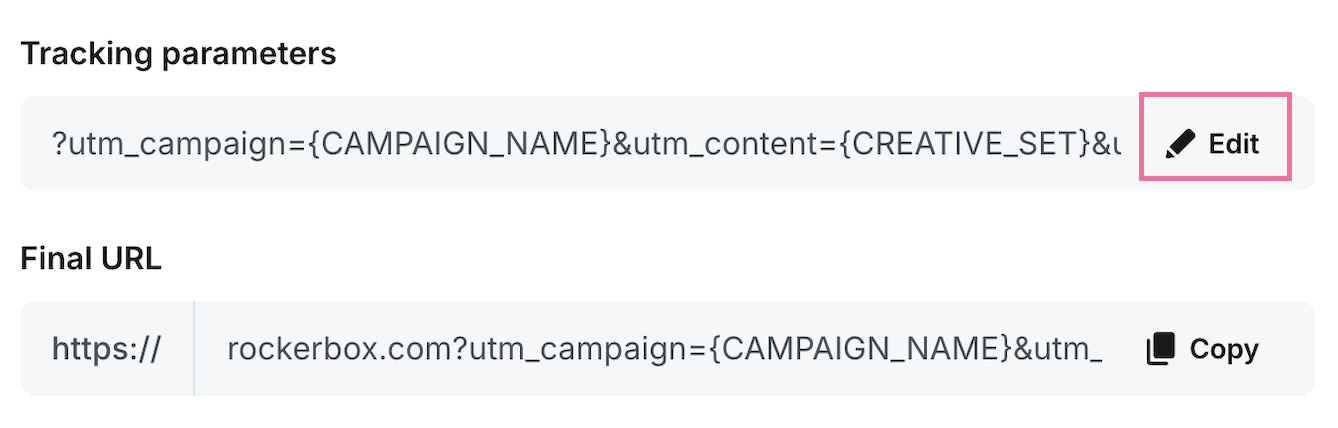
2. Configure click tracking parameters in AppLovin by selecting "Rockerbox" as your measurement provider (see URL Tracking Parameters below)
3. Authenticate your AppLovin account in Rockerbox to enable API spend ingestion (see API Spend below)
4. To enable view-through tracking, contact Rockerbox support and AppLovin to set up log-level feed delivery (see View-Through Tracking below)
5. Allow at least one full day of data collection after launch, then verify AppLovin appears on the [Advertising Platforms](https://app.rockerbox.com/v3/data/marketing/advertising_platforms/main) page
### URL Tracking Parameters
When creating or editing a campaign in AppLovin, click "Edit" next to tracking parameters.
 Under **Measurement partner parameters**, search for and select **Rockerbox**. This auto-adds all required parameters.
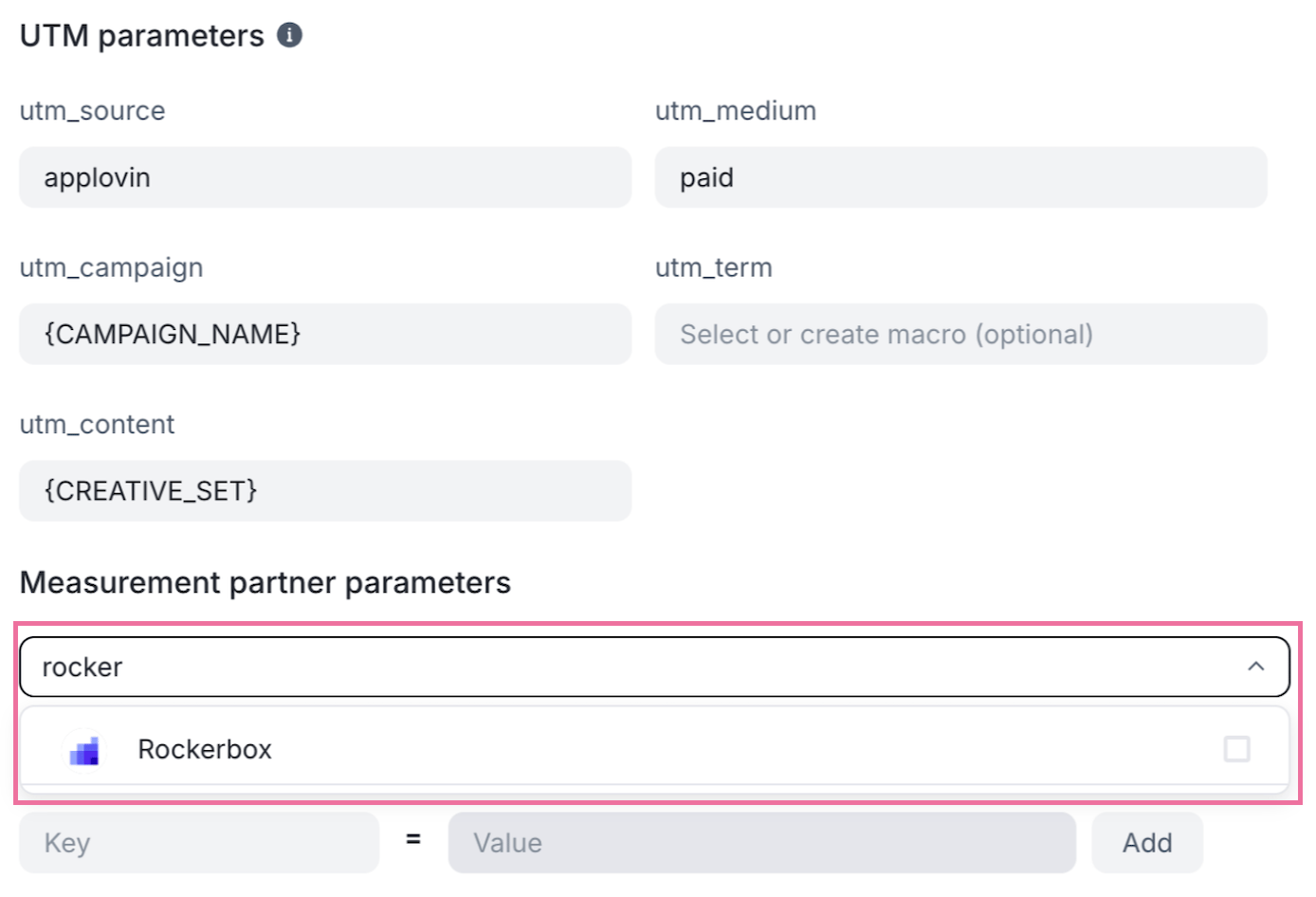 **Example Parameter String:**
```text wrap theme={null}
utm_campaign={CAMPAIGN_NAME}&utm_content={CREATIVE_SET}&utm_medium=paid&utm_source=applovin&al_campaignid={CAMPAIGN_ID}&al_campaignname={CAMPAIGN_NAME}&al_creativesetid={CREATIVE_SET_ID}&al_creativeset={CREATIVE_SET}&al_adtype={AD_TYPE}&al_country={CC}
```
| Parameter | Macro | Description |
| ------------------ | ------------------- | ----------------------------------------- |
| `utm_source` | `applovin` | Traffic source (hardcoded) |
| `utm_medium` | `paid` | Media type (hardcoded) |
| `utm_campaign` | `{CAMPAIGN_NAME}` | Campaign Name |
| `utm_content` | `{CREATIVE_SET}` | Creative Set Name |
| `al_campaignid` | `{CAMPAIGN_ID}` | Campaign ID (required) |
| `al_campaignname` | `{CAMPAIGN_NAME}` | Campaign Name |
| `al_creativesetid` | `{CREATIVE_SET_ID}` | Creative Set ID |
| `al_creativeset` | `{CREATIVE_SET}` | Creative Set Name |
| `al_adtype` | `{AD_TYPE}` | Placement type (INTER or REWARDED\_INTER) |
| `al_country` | `{CC}` | User country code |
## View-Through Tracking
Rockerbox has a direct partnership with AppLovin that provides view-based user-level touchpoints for attribution. When enabled, view and click-based reporting will appear against AppLovin in all MTA UI views.
* AppLovin delivers a daily log-level feed of conversions and attributed ad impressions (views) to Rockerbox
* Rockerbox matches the order ID from AppLovin reporting to Rockerbox's conversion data
* Rockerbox automatically applies a 28-day attribution window on AppLovin view data
* View-through data is available on a go-forward basis only, no historical backfill
### Requirements
1. You must authenticate your AppLovin account through Rockerbox (see API Spend below)
2. You must pass the same Order ID to both Rockerbox and AppLovin
### Enabling View-Through Tracking
1. Contact [support@rockerbox.com](mailto:support@rockerbox.com) to install the view-through integration
2. Contact AppLovin to request that view data is sent to Rockerbox. AppLovin will configure daily file delivery to Rockerbox on your behalf
## API Spend
Rockerbox pulls spend data directly from AppLovin via their Reporting API.
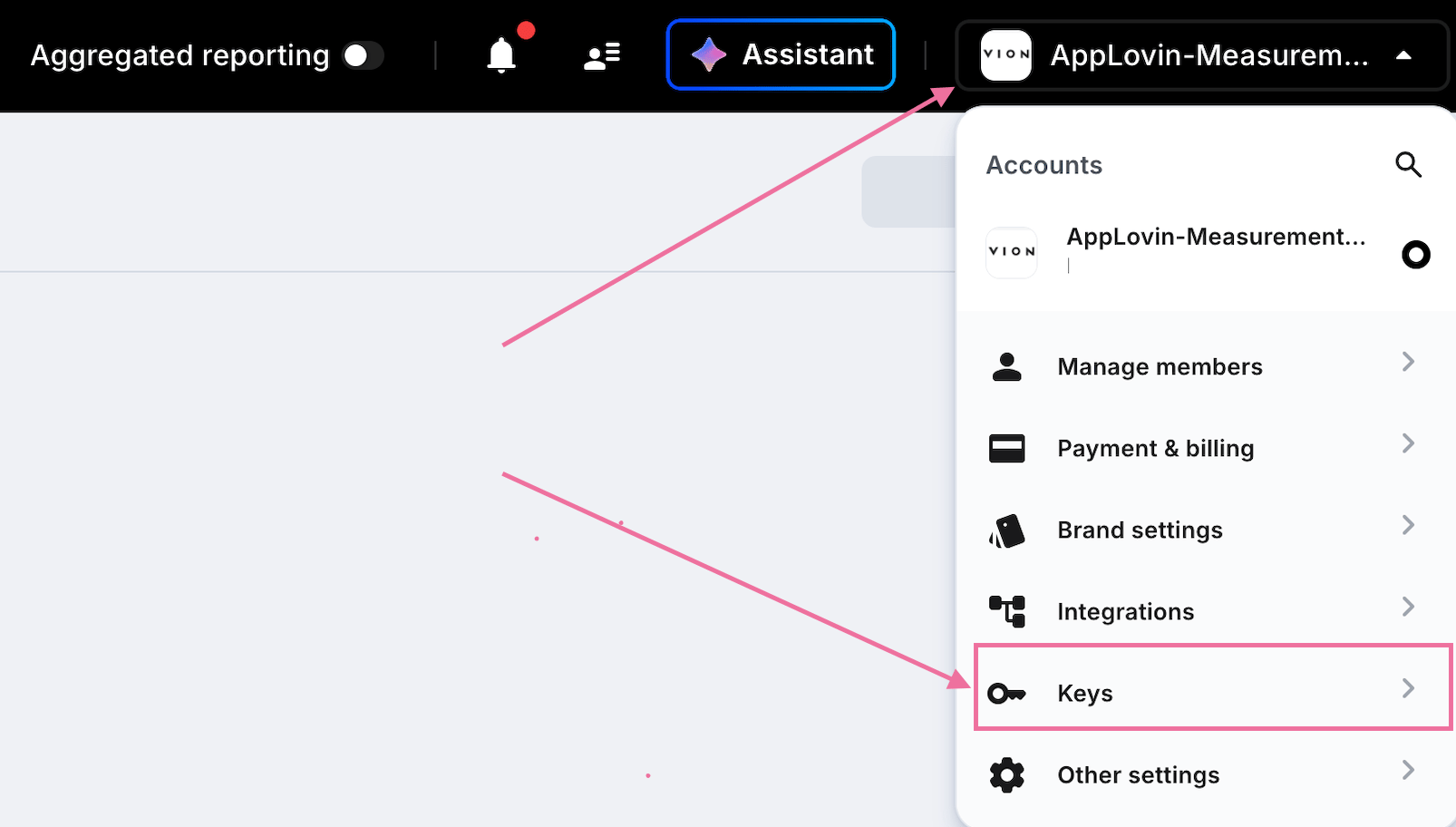
1. In AppLovin, click your account name in the top right, then select **Keys**
**Example Parameter String:**
```text wrap theme={null}
utm_campaign={CAMPAIGN_NAME}&utm_content={CREATIVE_SET}&utm_medium=paid&utm_source=applovin&al_campaignid={CAMPAIGN_ID}&al_campaignname={CAMPAIGN_NAME}&al_creativesetid={CREATIVE_SET_ID}&al_creativeset={CREATIVE_SET}&al_adtype={AD_TYPE}&al_country={CC}
```
| Parameter | Macro | Description |
| ------------------ | ------------------- | ----------------------------------------- |
| `utm_source` | `applovin` | Traffic source (hardcoded) |
| `utm_medium` | `paid` | Media type (hardcoded) |
| `utm_campaign` | `{CAMPAIGN_NAME}` | Campaign Name |
| `utm_content` | `{CREATIVE_SET}` | Creative Set Name |
| `al_campaignid` | `{CAMPAIGN_ID}` | Campaign ID (required) |
| `al_campaignname` | `{CAMPAIGN_NAME}` | Campaign Name |
| `al_creativesetid` | `{CREATIVE_SET_ID}` | Creative Set ID |
| `al_creativeset` | `{CREATIVE_SET}` | Creative Set Name |
| `al_adtype` | `{AD_TYPE}` | Placement type (INTER or REWARDED\_INTER) |
| `al_country` | `{CC}` | User country code |
## View-Through Tracking
Rockerbox has a direct partnership with AppLovin that provides view-based user-level touchpoints for attribution. When enabled, view and click-based reporting will appear against AppLovin in all MTA UI views.
* AppLovin delivers a daily log-level feed of conversions and attributed ad impressions (views) to Rockerbox
* Rockerbox matches the order ID from AppLovin reporting to Rockerbox's conversion data
* Rockerbox automatically applies a 28-day attribution window on AppLovin view data
* View-through data is available on a go-forward basis only, no historical backfill
### Requirements
1. You must authenticate your AppLovin account through Rockerbox (see API Spend below)
2. You must pass the same Order ID to both Rockerbox and AppLovin
### Enabling View-Through Tracking
1. Contact [support@rockerbox.com](mailto:support@rockerbox.com) to install the view-through integration
2. Contact AppLovin to request that view data is sent to Rockerbox. AppLovin will configure daily file delivery to Rockerbox on your behalf
## API Spend
Rockerbox pulls spend data directly from AppLovin via their Reporting API.
1. In AppLovin, click your account name in the top right, then select **Keys**
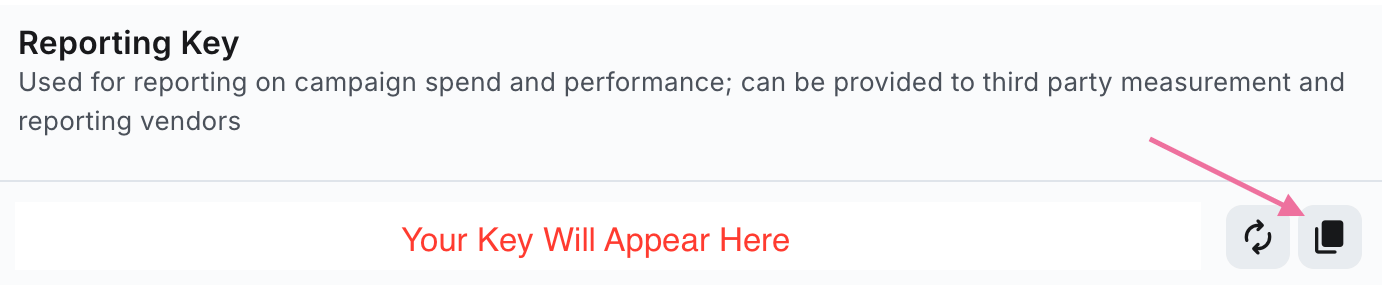
 2. Copy your **Reporting Key**
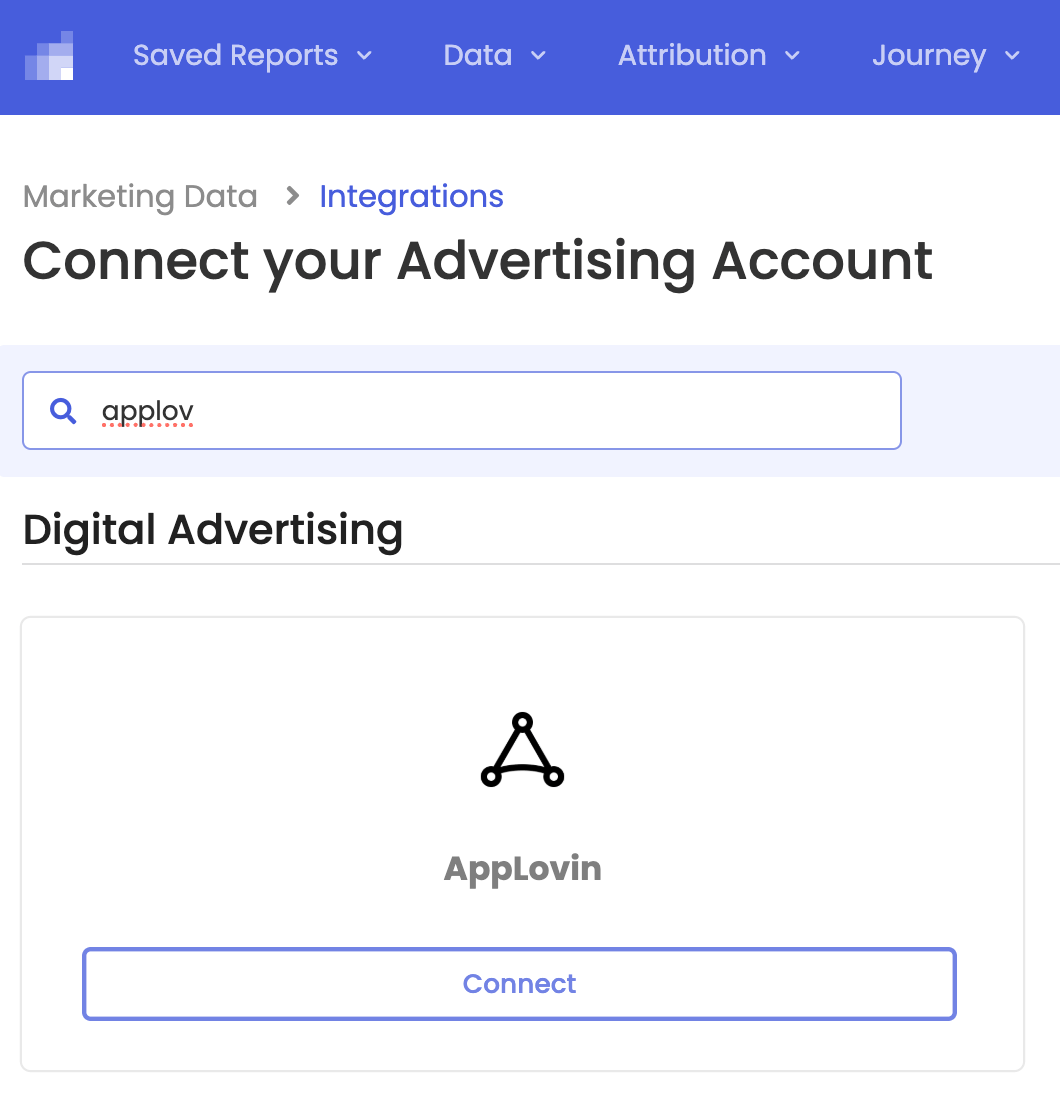
 3. In Rockerbox, navigate to the [Advertising Platforms](https://app.rockerbox.com/v3/data/marketing/advertising_platforms/connect) page, search for "AppLovin" and click **Connect**
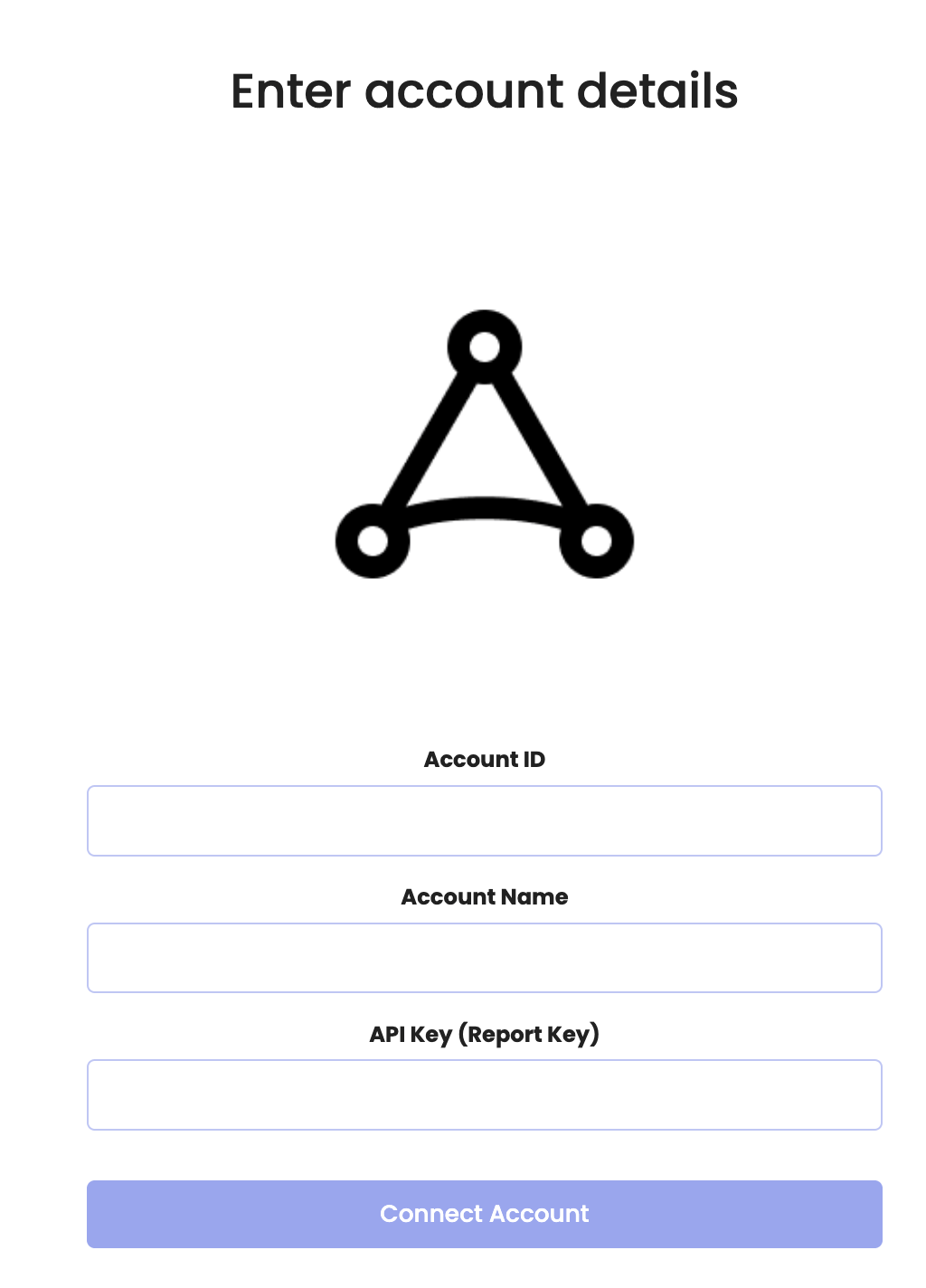
 4. Enter your Account ID, Account Name, and API Key (Report Key), then click **Connect Account**
 ## Verification
After setup:
1. Validate click tracking parameters are populating
2. Confirm view-through log files are being delivered (if enabled)
3. Check spend data appears in Rockerbox dashboard after at least one full day
4. Contact [support@rockerbox.com](mailto:support@rockerbox.com) for QA assistance
## Verification
After setup:
1. Validate click tracking parameters are populating
2. Confirm view-through log files are being delivered (if enabled)
3. Check spend data appears in Rockerbox dashboard after at least one full day
4. Contact [support@rockerbox.com](mailto:support@rockerbox.com) for QA assistance