> ## Documentation Index
> Fetch the complete documentation index at: https://data-foundation.rockerbox.com/llms.txt
> Use this file to discover all available pages before exploring further.
# Pinterest
> Learn how to set up Pinterest integration with Rockerbox
## Overview
Rockerbox integrates with Pinterest to track click and view-based touchpoints and ingest daily spend via API. View-based tracking is available through a direct partnership where Pinterest sends user-level touchpoints to Rockerbox.
## Setup Process
1. Authenticate your Pinterest account(s) on the [Advertising Platforms](https://app.rockerbox.com/v3/data/marketing/advertising_platforms/connect) page. This allows Rockerbox to ingest daily spend
2. Apply click tracking parameters to all ads (see Click Tracking sections below)
3. Contact [support@rockerbox.com](mailto:support@rockerbox.com) with the launch date and the [tier structure](https://help.rockerbox.com/article/obce43haen-1-hierarchy-mappings) you'd like applied. The team will also set up view and engagement-based tracking
4. The day after launch, confirm tracking is applied on the [Advertising Platforms](https://app.rockerbox.com/v3/data/marketing/advertising_platforms/main) page
## View-Based Tracking
Rockerbox tracks view and engagement-based touchpoints from Pinterest via a direct integration where Pinterest sends user-level data to Rockerbox daily.
Due to privacy restrictions, a new conversion segment called **\[Segment Name] - Pinterest** will be created when views are enabled. This segment contains all attributed conversions across all channels, including Pinterest view and engagement touchpoints.
### Requirements
* The Pinterest tag must be correctly set up on all pages of your website
* You agree to allow Rockerbox to send a daily performance report (Buckets Breakdown) to Pinterest, filtered to Pinterest touchpoints
### Verifying the Pinterest Tag
1. Open your browser and navigate to your homepage (disable any ad blockers)
2. Open **Inspector > Console**
3. Type `window.pintrk.tagId` and press Enter
* If it returns a number, the tag is firing correctly
* If not, work with Pinterest to add the pixel to your site
## Click Tracking
Pinterest tracking parameters must be set on **ads**, not on the pins you're promoting. Editing the destination URL for your ads will cause them to temporarily move back into "pending."
These parameter values use macros and do not need to be manually replaced. Their values will be dynamically filled by the platform when the ad is served.
### Standard Ads (Non-Shopping)
#### Example Parameter String
```text wrap theme={null}
p_campaign={campaign_name}&p_campaignid={campaignid}&p_adgroup={adgroupname}&p_adgroupid={adgroupid}&p_adid={adid}&p_keyword={keyword}&p_keywordid={keyword_id}&p_product={product_id}&p_prodgroupid={promoted_product_group_id}
```
| Parameter | Macro | Description |
| --------------- | ----------------------------- | ------------------------------------ |
| `p_campaign` | `{campaign_name}` | Campaign name (required) |
| `p_campaignid` | `{campaignid}` | Campaign ID (required) |
| `p_adgroup` | `{adgroupname}` | Ad group name (required) |
| `p_adgroupid` | `{adgroupid}` | Ad group ID (required) |
| `p_adid` | `{adid}` | Ad ID (required) |
| `p_keyword` | `{keyword}` | Keyword (required) |
| `p_keywordid` | `{keyword_id}` | Keyword ID (required) |
| `p_product` | `{product_id}` | Product ID (required) |
| `p_prodgroupid` | `{promoted_product_group_id}` | Promoted product group ID (required) |
Append the parameters to your ad destination URLs.
### Catalog Feed (Shopping Ads)
#### Example Parameter String
```text wrap theme={null}
p_campaign={campaign_name}&p_campaignid={campaignid}&p_adgroup={adgroupname}&p_adgroupid={adgroupid}&p_adid={adid}&p_keyword={keyword}&p_keywordid={keyword_id}&p_product={product_id}&p_prodgroupid={promoted_product_group_id}
```
| Parameter | Macro | Description |
| --------------- | ----------------------------- | ------------------------------------ |
| `p_campaign` | `{campaign_name}` | Campaign name (required) |
| `p_campaignid` | `{campaignid}` | Campaign ID (required) |
| `p_adgroup` | `{adgroupname}` | Ad group name (required) |
| `p_adgroupid` | `{adgroupid}` | Ad group ID (required) |
| `p_adid` | `{adid}` | Ad ID (required) |
| `p_keyword` | `{keyword}` | Keyword (required) |
| `p_keywordid` | `{keyword_id}` | Keyword ID (required) |
| `p_product` | `{product_id}` | Product ID (required) |
| `p_prodgroupid` | `{promoted_product_group_id}` | Promoted product group ID (required) |
For Pinterest Shopping ads, there are two methods:
**Method 1: Ad Link Column**
Add a column called `ad_link` to your catalog data source and append the Rockerbox tracking parameters to your full URL in that column. The `ad_link` field allows advertisers to specify a separate URL for tracking traffic from Pinterest Shopping ads. Must include the full URL (not parameters only) and begin with `http://` or `https://`.
**Method 2: Product Group Level**
Append Rockerbox tracking parameters in the "URL parameters (optional)" section when building your campaign. Add `{unescapedlpurl}` to the beginning of the parameters. The `{unescapedlpurl}` macro dynamically populates the landing page URL from the `ad_link` or `link` field in the data source when the ad is served. More info on [tracking parameters for shopping campaigns](https://help.pinterest.com/en/business/article/track-report-optimize-shopping-campaigns).
## Applying Parameters to Ads
Pinterest tracking parameters must be set on **ads**, not on the pins you're promoting. Editing the destination URL for your ads will cause them to temporarily move back into "pending."
### Editing an Existing Ad
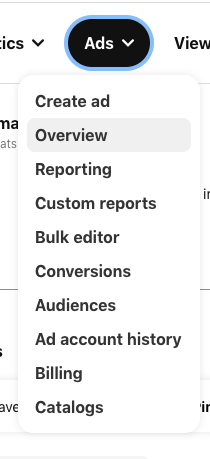
In the **Ads** dropdown, choose **Overview**. For each pending and active ad, as well as any inactive ads you plan to use in the future, follow the steps below.
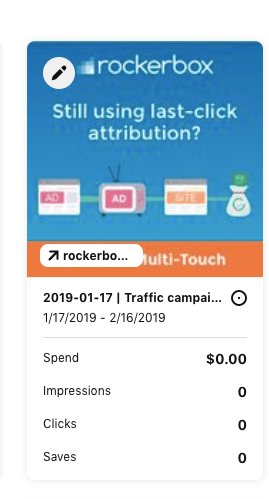
 1. Hover over the ad and click the edit icon in the upper left corner
 2. In the editing pane, select the **Destination link** field
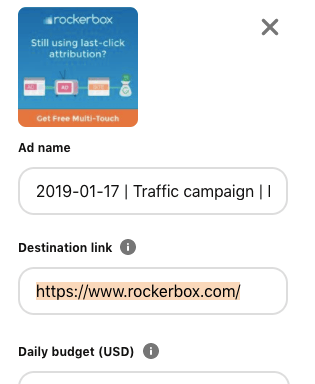 3. Append the Rockerbox click tracking parameters to your destination URL
4. Review your URL to confirm it matches formatting guidelines, including having a single `?` between the base URL and URL parameters
### Creating a New Ad (Quick Creation)
1. Find the **Destination URL** field in the quick creation screen
3. Append the Rockerbox click tracking parameters to your destination URL
4. Review your URL to confirm it matches formatting guidelines, including having a single `?` between the base URL and URL parameters
### Creating a New Ad (Quick Creation)
1. Find the **Destination URL** field in the quick creation screen
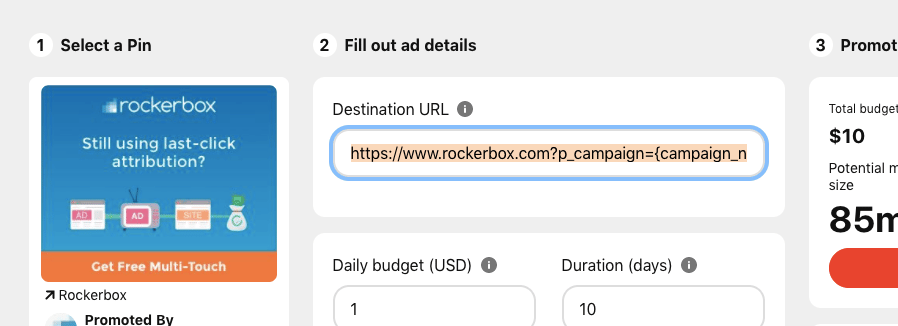 2. Append the Rockerbox click tracking parameters to your destination URL
3. Review your URL to confirm it matches formatting guidelines, including having a single `?` between the base URL and URL parameters
### Creating a New Ad (Standard Campaign Creation)
1. On the campaign creation screen, select the pins you want to include as ads. Do **not** click the edit icon for those pins to modify the URLs, as this will result in tracking errors
2. Choose the **Selected** tab to see the destination URLs
2. Append the Rockerbox click tracking parameters to your destination URL
3. Review your URL to confirm it matches formatting guidelines, including having a single `?` between the base URL and URL parameters
### Creating a New Ad (Standard Campaign Creation)
1. On the campaign creation screen, select the pins you want to include as ads. Do **not** click the edit icon for those pins to modify the URLs, as this will result in tracking errors
2. Choose the **Selected** tab to see the destination URLs
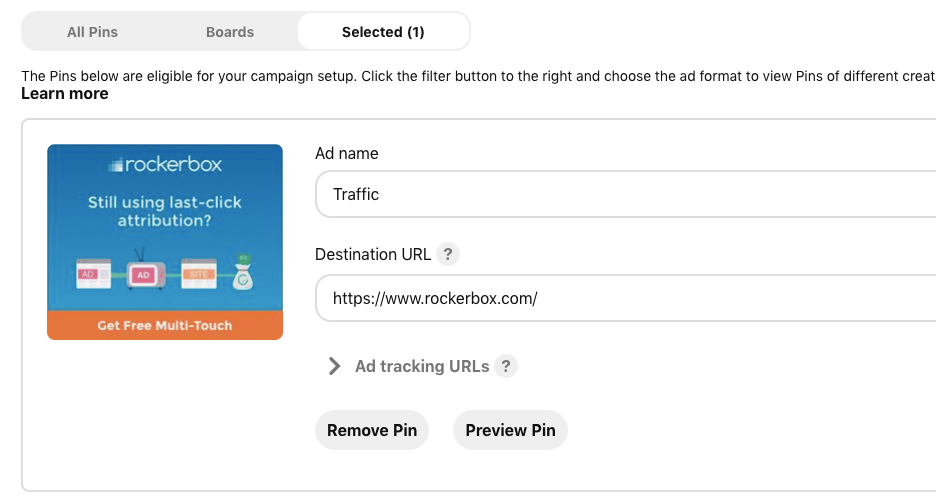 **Note:** The **Ad tracking URLs** field is NOT the correct field to use. Modify the **Destination URL** field.
## Spend
Spend is ingested automatically via API after authentication. Spend data refreshes daily.
### Unmapped Events
Unmapped events occur when Rockerbox attributes conversions to a marketing event without corresponding spend data. For Pinterest, this can happen due to "repins" where a user repins a historical ad. Rockerbox may still attribute the click, but the spend from the original campaign may no longer be in the data.
## Verification
After setup:
1. Confirm tracking is applied on the [Advertising Platforms](https://app.rockerbox.com/v3/data/marketing/advertising_platforms/main) page
2. Verify spend data appears in Rockerbox dashboard
3. Contact [support@rockerbox.com](mailto:support@rockerbox.com) for QA assistance
**Note:** The **Ad tracking URLs** field is NOT the correct field to use. Modify the **Destination URL** field.
## Spend
Spend is ingested automatically via API after authentication. Spend data refreshes daily.
### Unmapped Events
Unmapped events occur when Rockerbox attributes conversions to a marketing event without corresponding spend data. For Pinterest, this can happen due to "repins" where a user repins a historical ad. Rockerbox may still attribute the click, but the spend from the original campaign may no longer be in the data.
## Verification
After setup:
1. Confirm tracking is applied on the [Advertising Platforms](https://app.rockerbox.com/v3/data/marketing/advertising_platforms/main) page
2. Verify spend data appears in Rockerbox dashboard
3. Contact [support@rockerbox.com](mailto:support@rockerbox.com) for QA assistance