Only customers using Checkout Extensibility need to follow these steps. If you are not using Shopify’s Checkout Extensibility pages, please follow our Shopify instructions.
Enabling the Shopify Checkout Pixel
- In your Rockerbox dashboard, go to Data -> Integrations -> Connect New Account
- Search for Shopify and click “Connect”
- Enter the name of your Shopify domain. This is typically the domain where you login to your store admin portal.
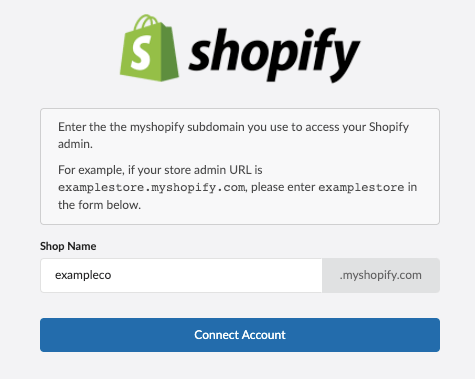
- You will be directed to the Shopify website to login.
-
Once successfully authenticated, we’ll perform a check to determine if the Checkout Pixel has been installed.
-
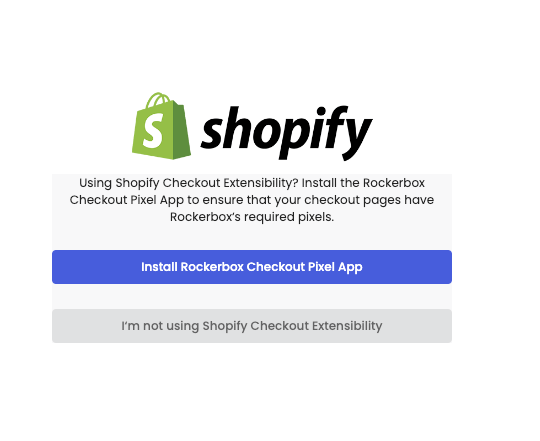
If the Checkout Pixel has not been installed, you’ll be prompted to install. Click “Install Rockerbox Checkout Pixel App”.
-
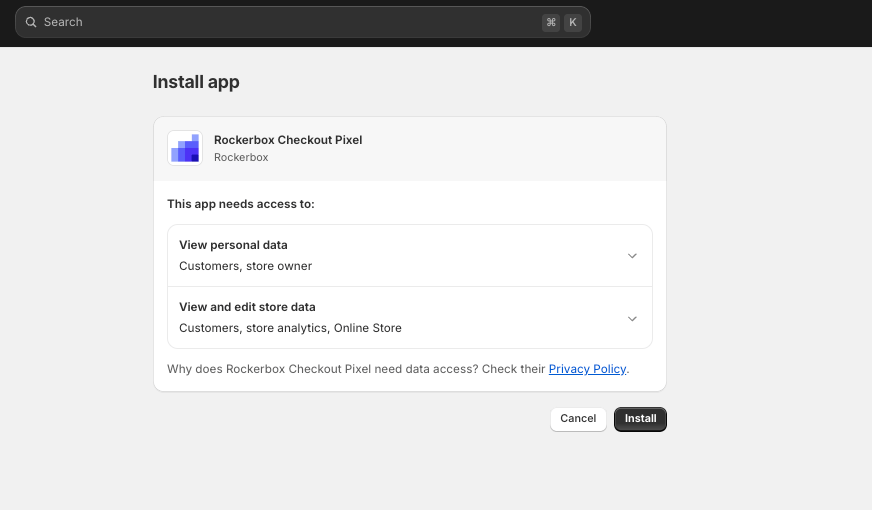
Install the Rockerbox Checkout Pixel app in your Shopify UI by clicking “Install”
-
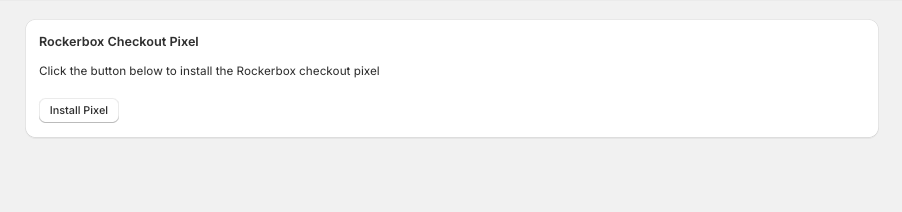
Next, you’ll need to install the pixel on your checkout completed pages by clicking “Install Pixel”
-
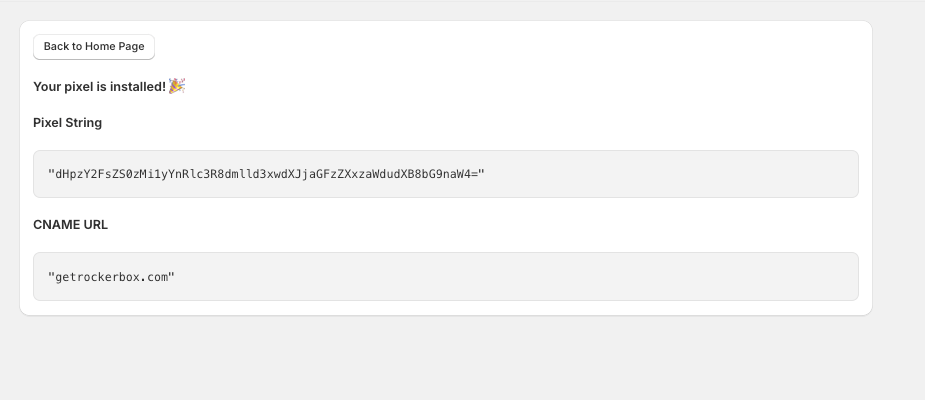
Once installed, you’ll see a confirmation alert. You can close the tab with the Shopify Admin UI.=
-
If the Checkout Pixel has not been installed, you’ll be prompted to install. Click “Install Rockerbox Checkout Pixel App”.
-
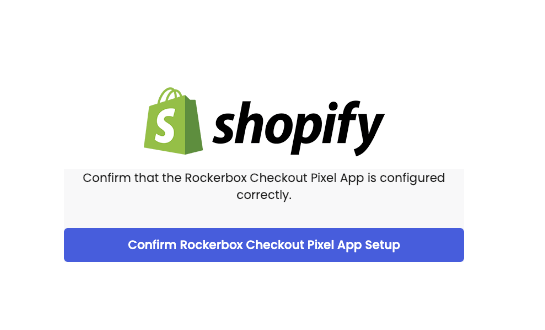
Confirm your Shopify pixel has been installed on your Checkout Extensibility order completed page.